
Updated April 27, 2026
This isn’t something you’ll find anywhere else on the internet.
Overview
- This details a method that you can use to track organic search traffic from Google AI Overviews and Google AI Mode.
Disclaimers
- This captures AI Overviews and AI Mode traffic, but does not differentiate between them.
- This method now excludes people who open search results in a new tab. This means, however, that it excludes users who open AI Overviews and AI Mode links in a new tab. There is a nuanced step you can take to note these individuals in their own category if you wish to preserve the distinction.
- Update: I am actively exploring how Google’s recent change to AI Mode, which opens links in side-by-side browser, impacts this setup.
- I also chose to piggyback onto this setup a detection method for Gemini / Claude / ChatGPT / Perplexity, mostly to try to catch direct / (not set) traffic, so I included a second setup that includes this.

How this method to track Google AI Overviews clicks works
The behavior we are measuring
When a searcher clicks a citation link in Google AI Overviews and AI Mode, the browser opens a new tab and focuses the user on that tab.
This behavior leaves a trail of markers that can be captured using JavaScript:
- The click passes a referrer (recorded as page_referrer in Google Analytics). AI Overviews and AI Mode use https://www.google.com/.
- The browser window history for the number of pages in that tab’s session begins at 1.
- The browser handling behavior of the new tab is ‘navigate’ (as opposed to prerender, back-forward, and refresh).
- The browser’s visibility state can be captured, meaning you can discern if the user immediately opened the tab versus if the page loaded in a non-active tab.
- Finally, you can also capture the amount of time between the page initially loading in a non-active tab and the tab being accessed by the user, switching its visibility state from ‘hidden‘ to ‘visible‘.
We will use Google Tag Manager to detect these and pass multiple parameters along with the page view that notes traffic associated with this behavior.
This method can be paired with the URL Fragment tracking method provided by Dana DiTomaso at Kick Point. Adding this and examining the events and parameters associated with that traffic is what sent me down this rabbit hole.

Step-by-step guide
If you are interested in the full setup to track generative AI platform traffic as well, I am including that below. I enabled it on mine as a way to see if I was missing any referrals that happened to show up as direct / (none), but so far it has not yielded anything in addition to the normally tracked traffic.
Google AI Overviews and AI Mode Only
Variables
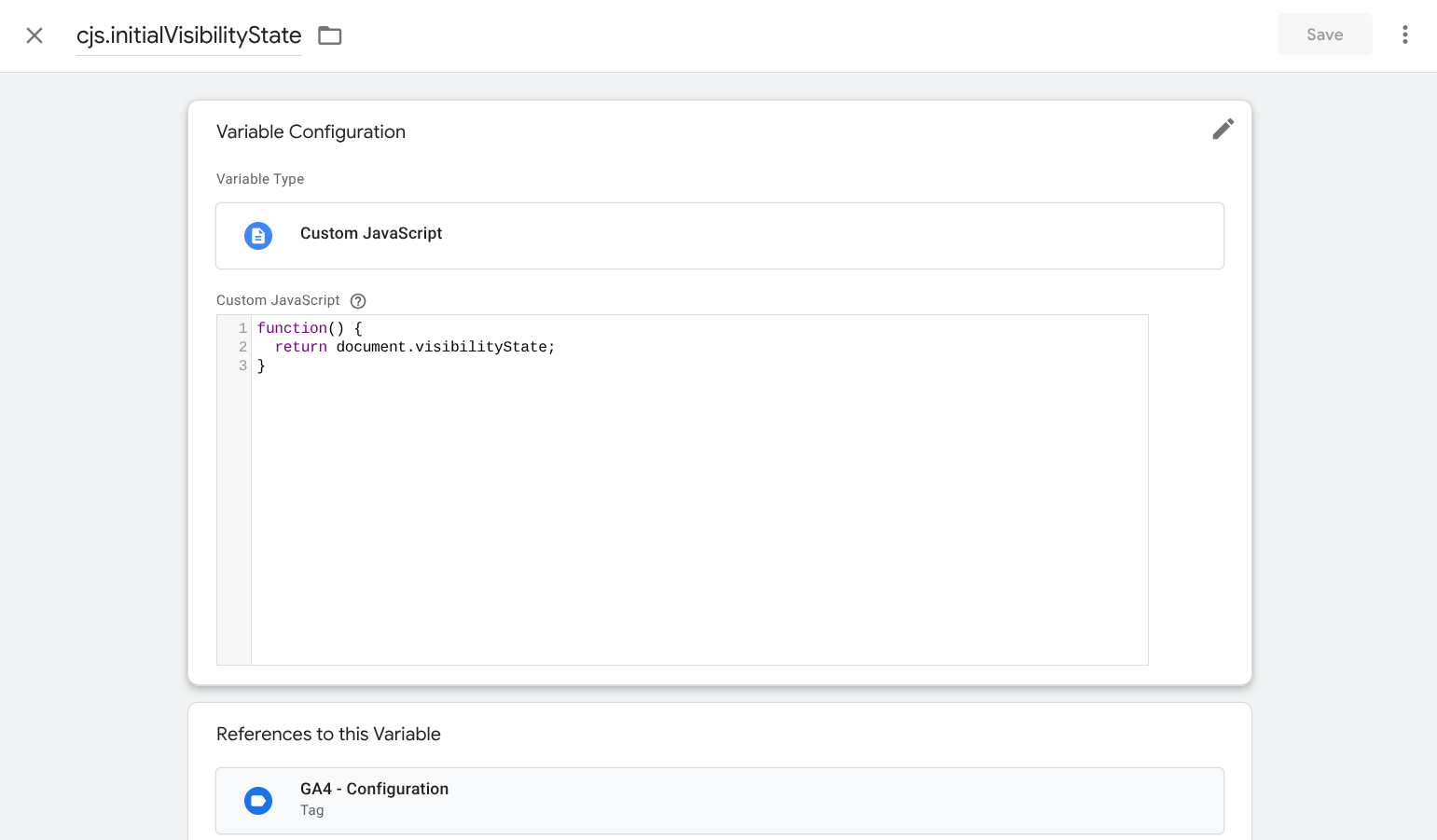
In Google Tag Manager, create a new custom Javascript variable. We will use this to capture the tab’s visibility state. I named mine cjs.initialVisibilityState.
function() {
  return document.visibilityState;
}
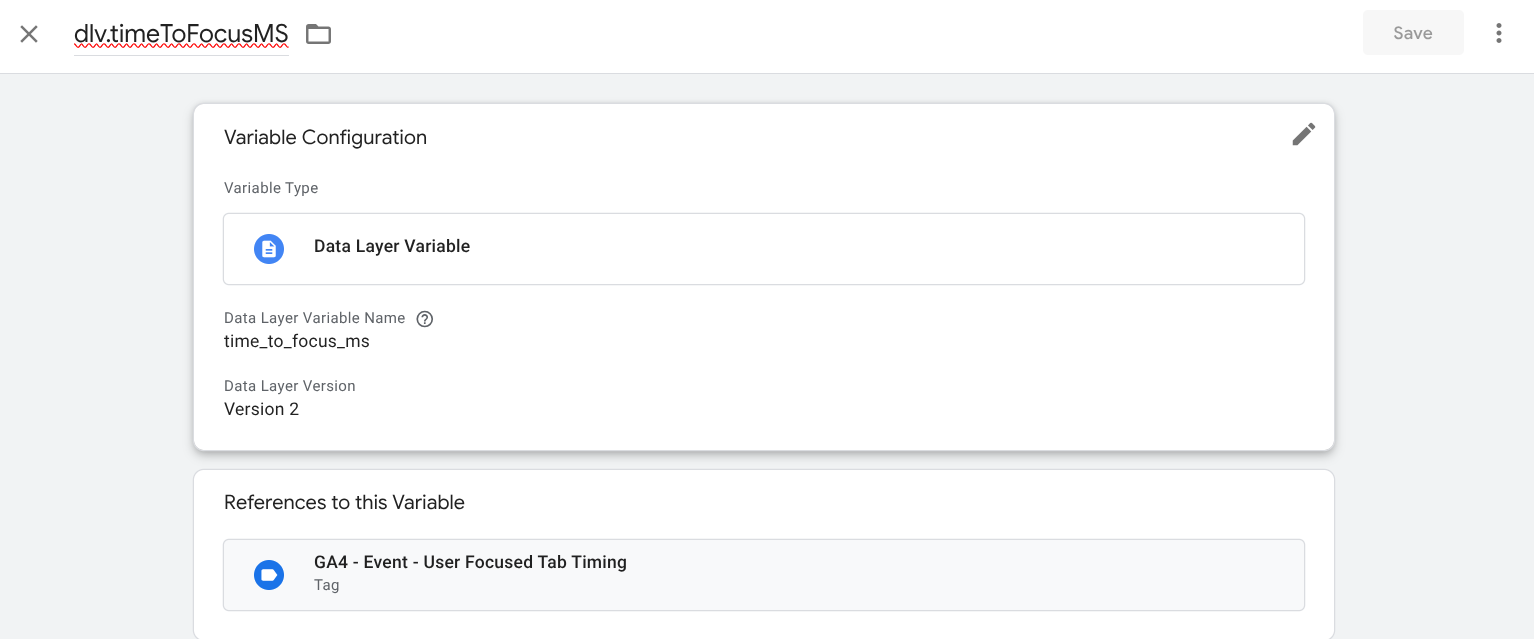
Optional, but recommended: Next, create a new data layer variable. This is a verification measure we are going to use to know if users opened a result in a new tab instead of clicking on an AI Overview or AI Mode link. It is part of a mechanism that will capture capture the amount of time between the page initially loading with a visibility state ‘hidden’ and when they finally chose to view the tab. I named mine dlv.timeToFocusMS.
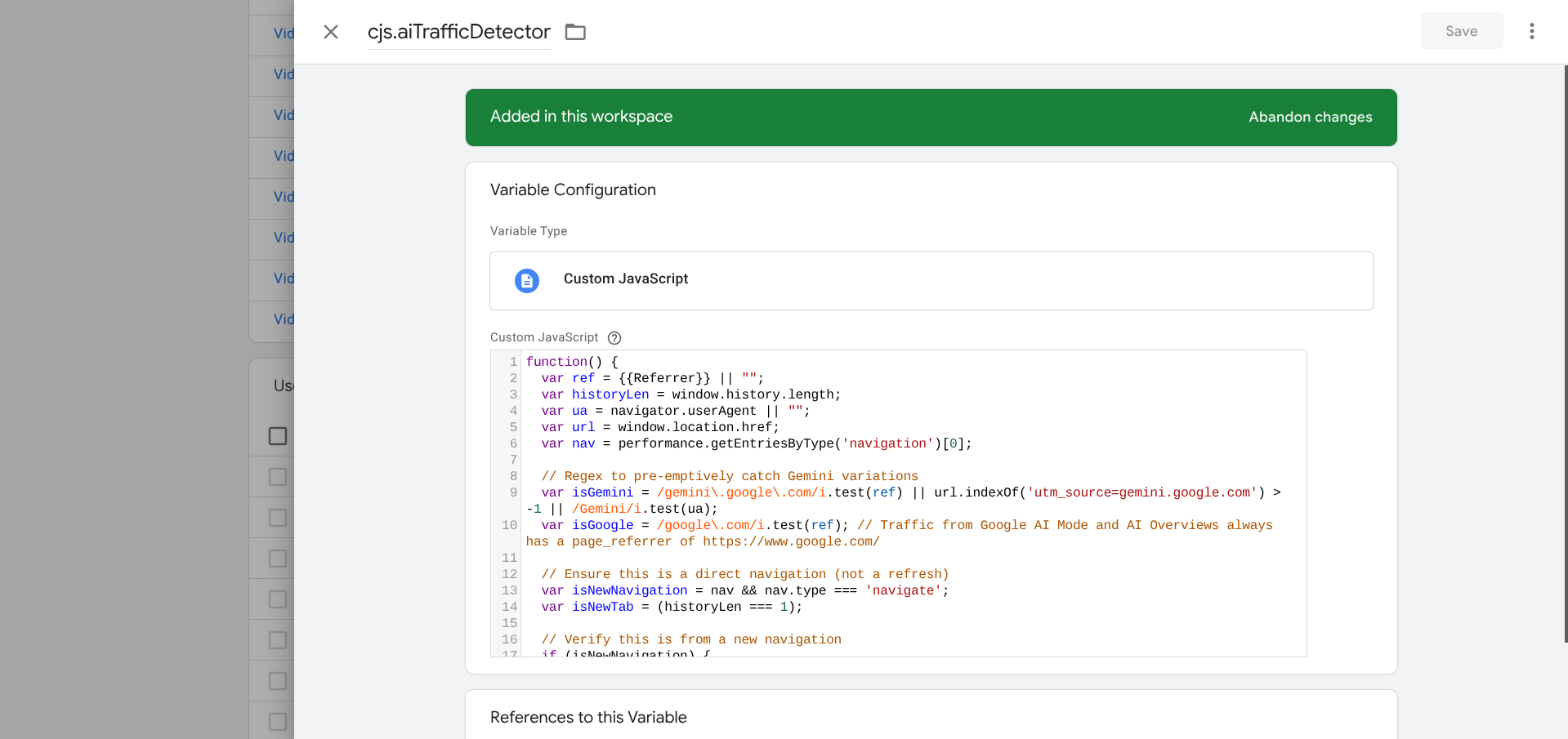
Finally, create a new custom Javascript variable. You can name it what you want, but I named mine cjs.aiTrafficDetector, since it uses the greater script I created.
Paste the JavaScript code below.
function() {
  var ref = {{Referrer}} || "";
  var historyLen = window.history.length;
  var ua = navigator.userAgent || "";
  var url = window.location.href;
  var nav = performance.getEntriesByType('navigation')[0];

  // Regex to catch Google and Gemini variations, so we don't confuse the two
  var isGemini = /gemini\.google\.com/i.test(ref) || url.indexOf('utm_source=gemini.google.com') > -1 || /Gemini/i.test(ua);
  var isGoogle = /google\.com/i.test(ref);

  // Ensure this is a direct navigation (not a refresh)
  var isNewNavigation = nav && nav.type === 'navigate';

  // Check the browser history to ensure this is a brand new tab
  var isNewTab = (historyLen === 1);

  // Check the browser visibility state to note if it is visible or hidden
  var isActive = (document.visibilityState === 'visible');
  var isHidden = (document.visibilityState === 'hidden');

  if (isNewNavigation) {
    // Check for Gemini
    if (isGemini && isNewTab && isActive) {
      return 'gemini_ai_traffic';
    }
    // Check for Google AI Mode and Google AI Overviews
    if (isGoogle && isNewTab && isActive) {
      return 'google_ai_traffic';
    }
    // Provides a method to note new tabs opened from Google Search results
    // if (isGoogle && isNewTab && isHidden) {
    //  return 'google_new_tab_traffic';
    // }
  }

  return 'other';
}Note: I included a commented section above near the end. Without noting the visibility state of the tab on page load, links clicked on in AI Overviews / Mode and someone right clicking a search result and opening in a new tab / control + clicking are indistinguishable. This script takes efforts to remove the false positives; however, you should know that it will not track users that deliberately open AI Overviews / Mode links in a new tab, instead of normally clicking. If you want to track those clicks, (e.g. you’re curious about the behavior exhibited by your users, or you want to compare the two), uncomment the section.
It will look like this once you add it.

Tags and triggers
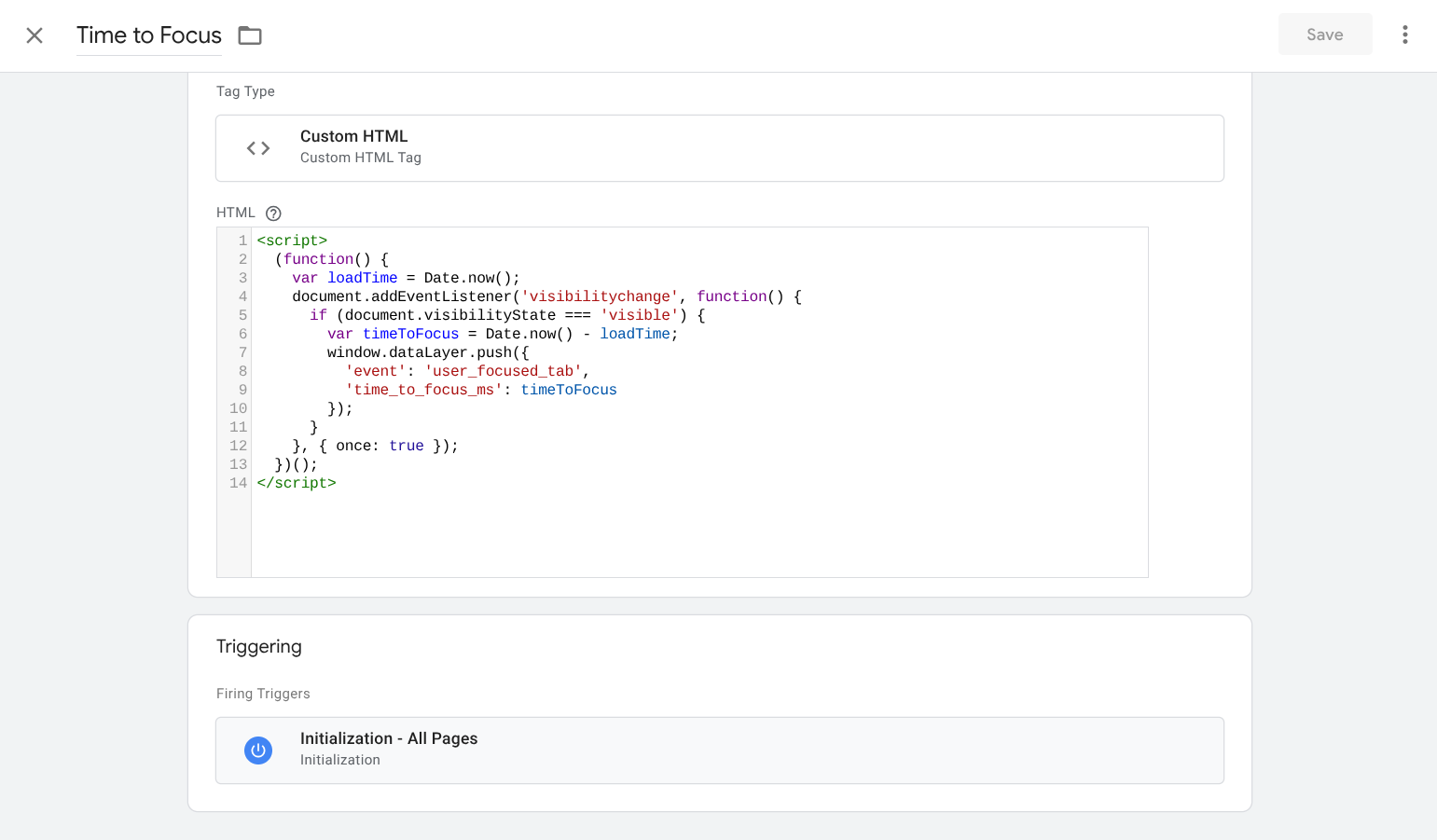
Optional, but recommended: Create a custom HTML tag and name it something appropriate that reflects a script that captures when the page initially loads, looks for a change in visibility state, and then records the time that lapsed. I called mine Script – Time to Focus.
<script>
  (function() {
    var loadTime = Date.now();
    document.addEventListener('visibilitychange', function() {
      if (document.visibilityState === 'visible') {
        var timeToFocus = Date.now() - loadTime;
        window.dataLayer.push({
          'event': 'user_focused_tab',
          'time_to_focus_ms': timeToFocus
        });
      }
    }, { once: true });
  })();
</script>
For the trigger, select Initialization – All Pages.
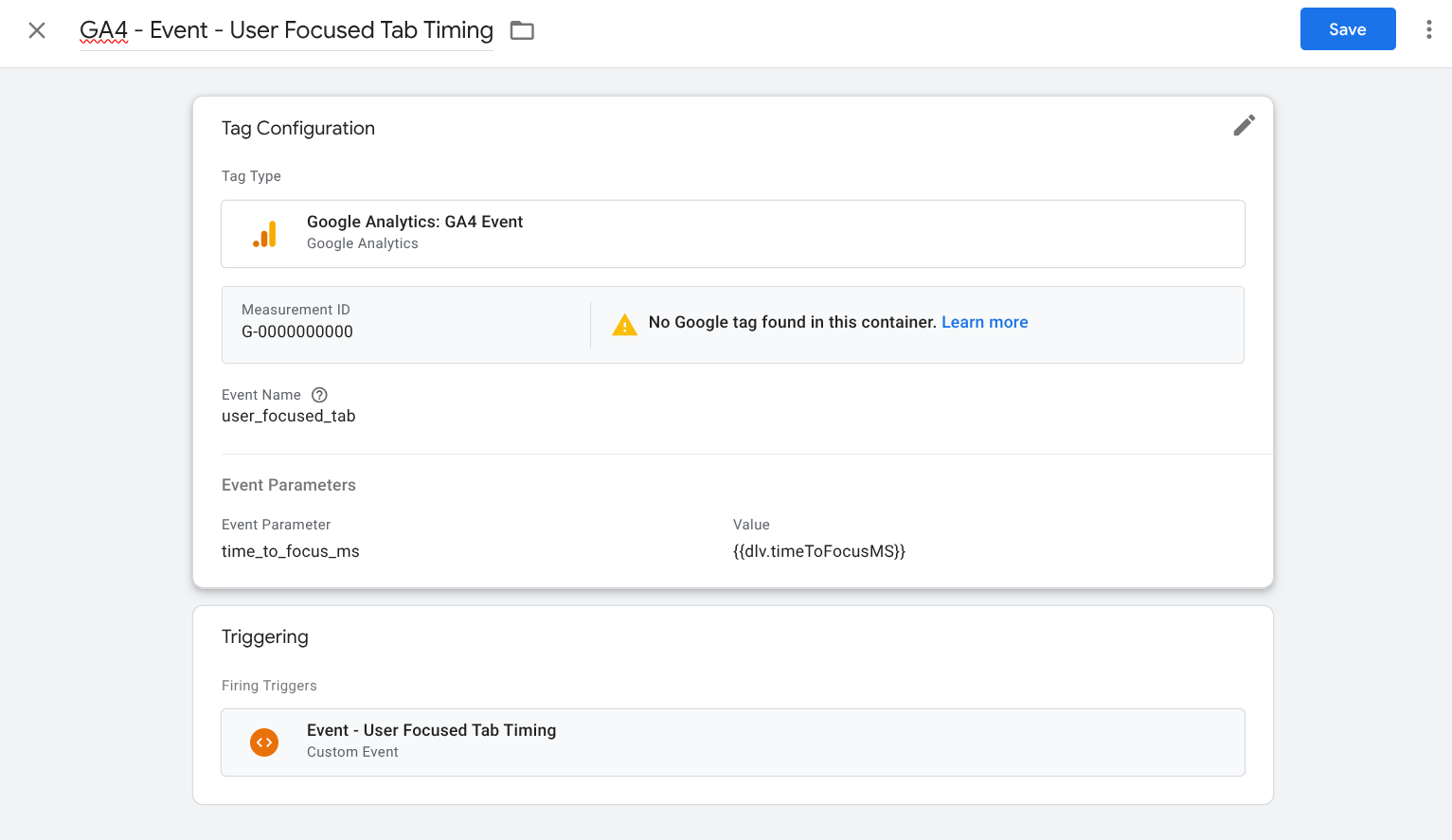
Optional, but recommended: Create a GA4 Event that will capture the lapsed time noted above. I named mine GA4 – Event – User Focused Tab Timing. Make sure to put your GA4 measurement ID in the field. In the event name, add user_focused_tab. In the parameters, add an event parameter with the name time_to_focus_ms and set the value to be the data layer variable we created above – {{dlv.timeToFocusMS}}.
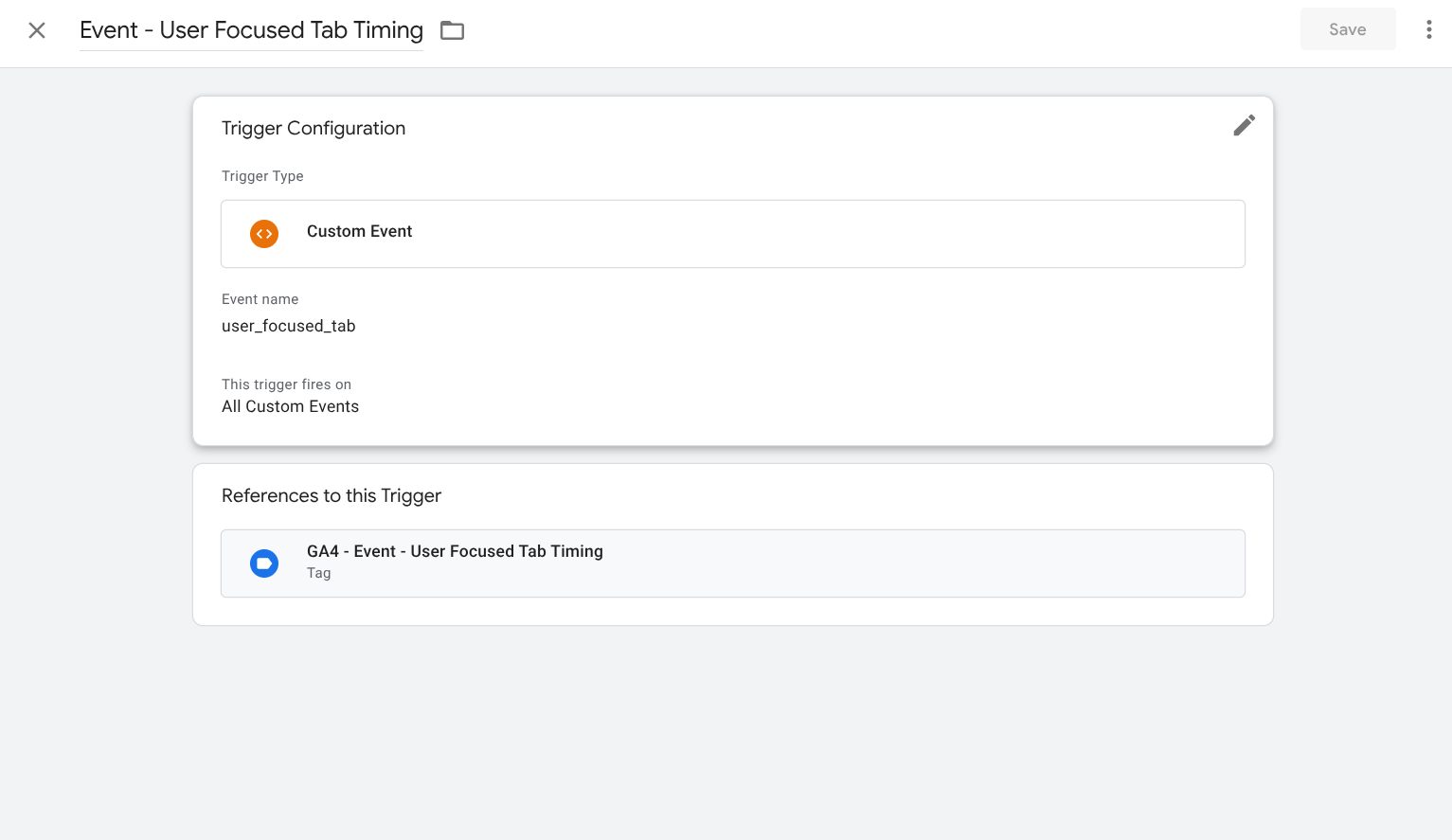
You will need to create a custom trigger for this that fires when the script above records when the user accessed the tab they opened. Make the trigger type Custom Event and set the event name user_focused_tab. Ensure it fires on all custom events.
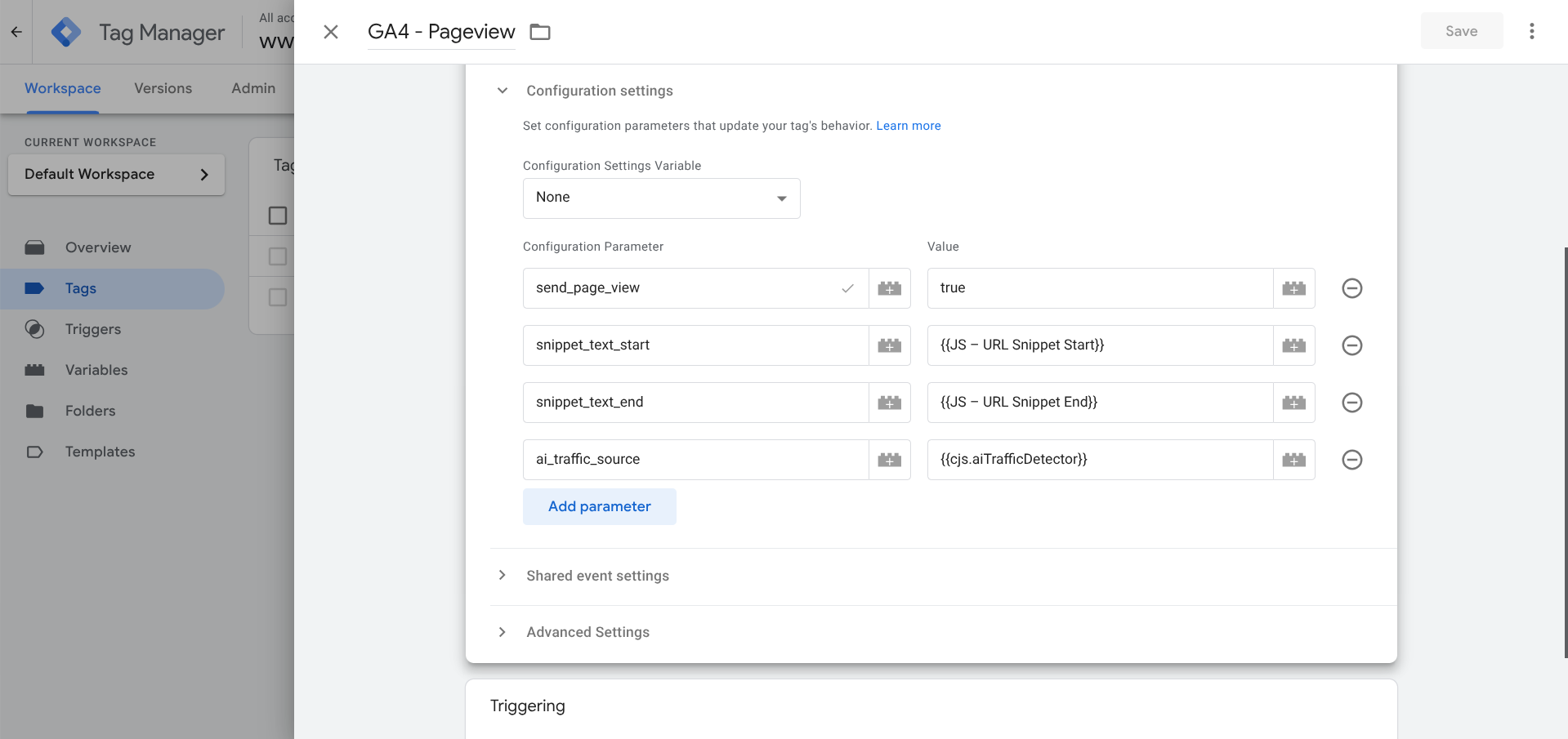
Required: Finally, in your GA4 configuration, add two configuration parameters. Name the first parameter something relevant that indicates AI traffic referrals, like ai_traffic_source, and in the value, add the variable we just created – {{cjs.aiTrafficDetector}}. Name the second parameter initial_visibility_state and add the variable we created for it – {{cjs.initialVisibilityState}}.
Verify everything fires correctly through testing, and when you’re ready, hit submit.
Google Analytics changes
You will need to add a handful of custom dimensions and metrics to your Google Analytics instance to ensure you can track this traffic, double verify the setup is working, and view the data in your platform of choice (e.g. Looker Studio).
Open Google Analytics 4 and go to Admin > Data Display > Custom Dimensions. Create 2 new custom dimensions.
- Tracking the traffic: For the first, give the dimension name something appropriate, like something similar to the name you gave the configuration parameter above, like AI Overviews and Mode Referrals. Under Event Parameter, add the configuration parameter you used above (e.g. ai_traffic_source) and hit save.
- Tracking the visibility: For the second, name the dimension something appropriate like Initial Visibility State. Under Event Parameter, add initial_visibility_state.
Then, if you chose to measure the time it took to view new opened tabs as backup validation, created a custom metric. Call the metric name something like Time to Focus MS New Tab. Under Event Parameter, add time_to_focus_ms and set the unit of measurement to Milliseconds.
You’re done. Moving forward, you’ll need something to visualize where this traffic comes from. I recommend Looker Studio, so you can actively monitor what the associated source / medium is, as well as anything else relevant.
To verify your setup is working correctly, I recommend creating a makeshift table that shows Landing Page, Initial Visibility State, AI Overviews and Mode Referrals alongside Sessions and Time to Focus MS New Tab. If working correctly, you will only have ‘google_ai_traffic’ appear under AI Overviews and Mode Referrals when the Initial Visibility State is ‘visible’. In addition, for instances where the Initial Visibility State is ‘hidden’, and especially if you chose to uncomment the nuanced code above, you’ll see numbers under Time to Focus.

Using this setup to detect generative AI traffic
This is the exact same setup as above, except the script is expanded for the custom Javascript variable. I added these because I was curious if I could detect direct / (none) traffic from these platforms, since I’ve seen (likely very outdated) discourse that ChatGPT referrals for users who aren’t logged in or are on a free account lack referral data. (So far this hasn’t borne out for me, but since I’m already logging the parameter, there is no downside to adding further nuance.)
Some notes:
- As far as I was able to test, all desktop in-browser clicks on generative AI links opened in a new tab. The page_referrer was very reliable in providing the website, logged in or logged out.
- I tested on mobile and discovered that most platforms opened a link in an in-app browser, so this included additional checks as well. As a fallback method, it also checks to see if the loaded URL has a corresponding utm_source appended.
- The only two mobile app platforms that did not open in-app were Gemini and Claude, which opened in the mobile browser, and they appeared to strip referral data for privacy reasons. You won’t be able to track those clicks.
function() {
  var ref = {{Referrer}} || "";
  var historyLen = window.history.length;
  var ua = navigator.userAgent || "";
  var url = window.location.href;
  var nav = performance.getEntriesByType('navigation')[0];

  // Regex to catch Google and Gemini variations, so we don't confuse the two
  var isGemini = /gemini\.google\.com/i.test(ref) || url.indexOf('utm_source=gemini.google.com') > -1 || /Gemini/i.test(ua);
  var isGoogle = /google\.com/i.test(ref);
  var isChatGPT = /chatgpt\.com|openai\.com/i.test(ref) || url.indexOf('utm_source=chatgpt') > -1 || /ChatGPT/i.test(ua);
  var isClaude = /claude\.ai/i.test(ref) || url.indexOf('utm_source=claude.ai') > -1;
  var isPerplexity = /perplexity\.ai/i.test(ref) || url.indexOf('utm_source=perplexity') > -1 || /Perplexity/i.test(ua);
  var isCopilot = /copilot\.microsoft\.com/i.test(ref) || url.indexOf('utm_source=copilot.com') > -1;

  // Ensure this is a direct navigation (not a refresh)
  var isNewNavigation = nav && nav.type === 'navigate';

  // Check the browser history to ensure this is a brand new tab
  var isNewTab = (historyLen === 1);

  // Check the browser visibility state to note if it is visible or hidden
  var isActive = (document.visibilityState === 'visible');
  var isHidden = (document.visibilityState === 'hidden');

  if (isNewNavigation) {
    // Check for Gemini
    if (isGemini && isNewTab && isActive) {
      return 'gemini_ai_traffic';
    }
    // Check for Google AI Mode and Google AI Overviews
    if (isGoogle && isNewTab && isActive) {
      return 'google_ai_traffic';
    }
    // Check for ChatGPT Referral
    if (isChatGPT && isNewTab && isActive) {
      return 'chatgpt_ai_traffic';
    }
    // Check for Claude Referral
    if (isClaude && isNewTab && isActive) {
      return 'claude_ai_traffic';
    }
    // Check for Perplexity Referral
    if (isPerplexity && isNewTab && isActive) {
      return 'perplexity_ai_traffic';
    }
    // Check for Copilot Referral
    if (isCopilot && isNewTab && isActive) {
      return 'copilot_ai_traffic';
    }
  }

  return 'other';
}
FAQs
What are some ways I can use this data?
You can join your data with data from Google Search Console to create an AI performance report that pairs impressions (effectively citations) with clicks (entrances) and conversions. This will not be as airtight as it sounds, since the position of AI Overviews is variable; while it usually is position 1, the AI Overview itself is a rankable search element subject to position shifts if people don’t or do interact with it.
However, you can pair it with known queries and reverse engineered prompts / questions to get a better sense of what appears in the search results and how you can adapt and optimize for it.
Is this method compatible with the previous partial tracking method that captured the text of URL fragments?
Yes, it is fully compatible.
Does this tracking method differentiate between Google AI Overviews and Google AI Mode?
As of April 27, 2026, it does not.
How does this tracking method account for false positives, like if a searcher directly opens a cited link a new tab?
This tracking methods accounts for false positives by checking if a tab is visible upon load and, when a tab is not visible upon load, measures how long in milliseconds it took the user to open the tab.