

Yes, the title is terrible. But the content of this post is well worth it.
Not so long ago, Bing Webmaster Tools published a beta version of its AI Performance report. Because it is the only real-world data we have on citations, it’s great. But it’s also very flawed, because it does not export page- and query-level data in any kind of nuance. You have to click on each page or each query to filter for it for a given date range, then click a button to export, then add whatever you just exported as a third column (because it does not append the URL or grounding query), then aggregate it all.
I have created something much more helpful than what the interface allows: a way to export the daily citations of each page contained in the report in aggregated form. I have not yet tested this on the queries, but it should take about 5 minutes to invert the script and export the other data.
It will require a little bit of setup because we are going to make requests through the BWT interface using the browser.
Creating the list of pages you want exports of
Go to the AI Performance report in Bing Webmaster Tools and click Pages under List By.
Open your browser and navigate to the Network tab.
Click Download all to download all of the aggregate citations associated with each URL. Next, make sure you can see an export entry in the Network tab. You will need this in the next step.
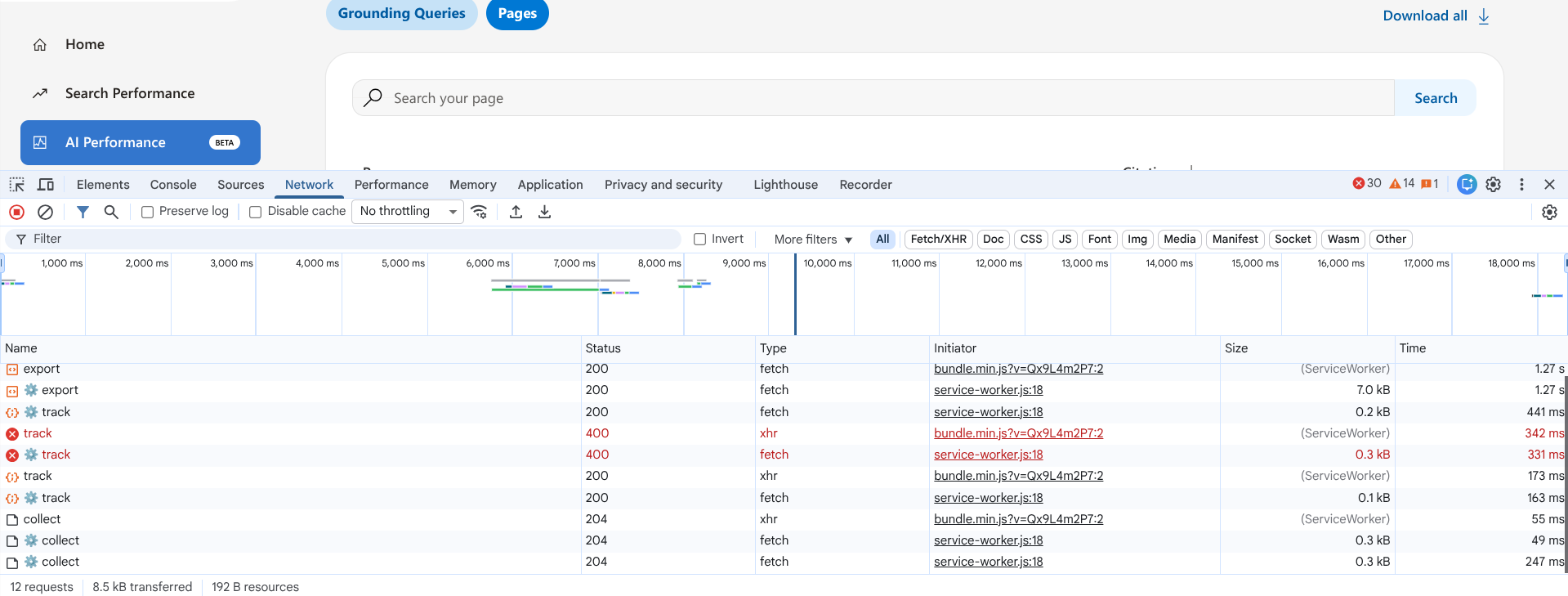
Again, do not close your console, or you will have to repeat the download again.
Open your CSV in your spreadsheet software of choice. You will need to prepare the URLs for the script we are about to use.
- In the cell of the column next to the first row of data (C2), add a quote.
- In the cell next to that one (D2), add a comma.
- In the cell next to that one, add a concatenate formula that surrounds the URL with quotes and adds a comma at the end of the line. It should look something like this: =CONCATENATE(C2,A2,C2,D2)
- Drag / propagate that to the bottom row; however, in the final row, remove the comma from the cell, so the prepared item lacks an ending comma.
Once you have done this, hold on to that CSV or prepared list.
Extracting your headers
Go back to your browser window with Webmaster Tools and right click on the top Export entry, then hover over Copy and click Copy as Fetch (Node.js).
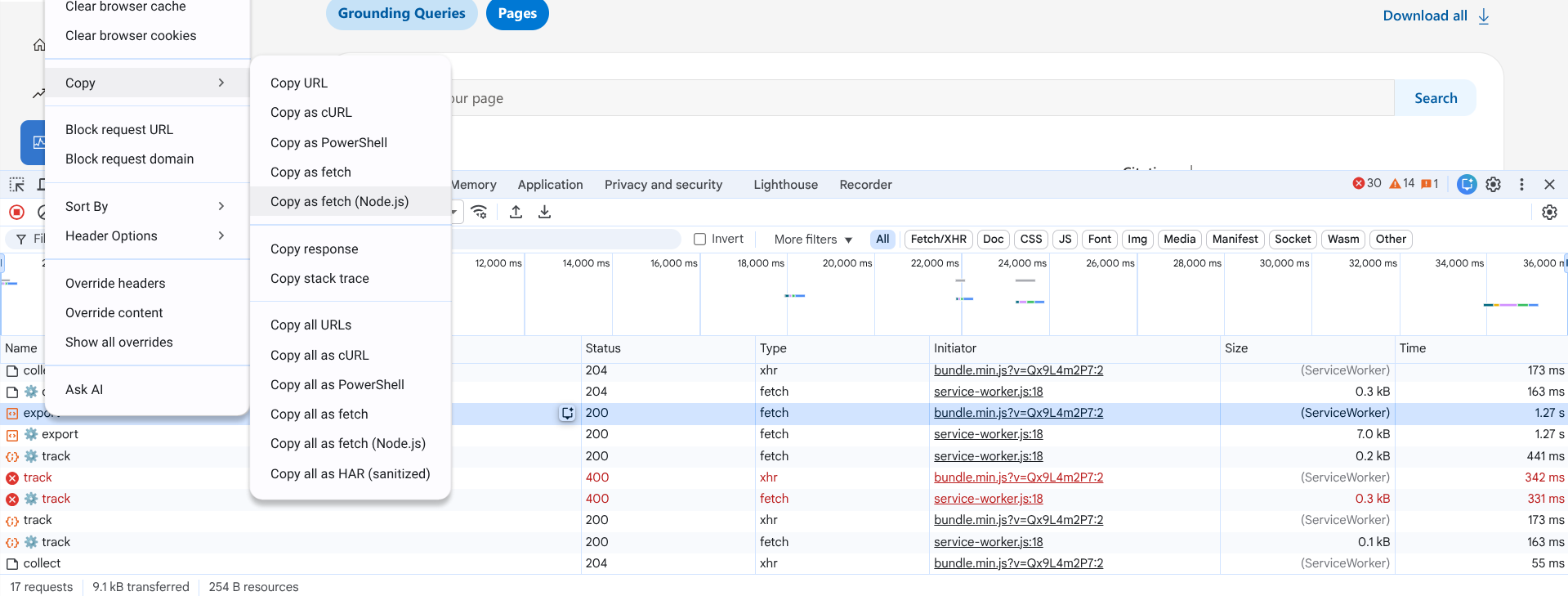
In a code or text editor, paste that. You are now looking at the fetch request.
Locate your x-csrf-token entry and copy that number.
Also locate your siteURL from the body and copy that.
Note: I tested the x-csrf-token on multiple BWT properties I have access to and it remained the same. It is likely connected with your account.
Determining your date range
There are two final things you need to do before you modify the script: determine your date range and set the same date range in the interface.
The reason you need to manually set the date range in the interface is because the data displayed on the chart and in the table is loaded on-demand into the browser. The graph at the top contains no actual data points, despite what you can visually see. Instead, it draws them using coordinates. The data you see from the tooltips when you hover is temporarily loaded into the tooltip upon mouseover and is replaced once you hover over another point on the graph. All of the data comes from the dataset that is loaded in, which we are going to be making the requests from.
Bing Webmaster Tools requests accept RFC 1123 standard time stamps – you’ll need to specify the day, date and time in GMT for both the start and end dates. To make it easy for you, modify the two lines below.
- “BeginTimeStamp”: “Sat, 01 Nov 2025 00:00:00 GMT”,
- “EndTimeStamp”: “Tue, 24 Mar 2026 00:00:00 GMT”
For further reference, as of right now (March 25), the earliest date you can export data from is November 1, 2025. It is very likely this data is going to function similarly to organic performance data in Bing Webmaster Tools and Google Search Console, where it is available for a determined period on a rolling basis (e.g. 16 months in GSC). Hence why you should start backing this data up right now.
Assembling the script
Copy the script below and modify it at the commented points.
async function scrapeAndMergeBingData() {
    // 1. LIST YOUR PAGES HERE
    const pagesToScrape = [
        "https://example.com/",
        "https://example.com/page-1/",
        "https://example.com/page-2/",
        "https://example.com/last-example/"
    ];

    const url = "https://www.bing.com/webmasters/api/aiperformance/citationstats/filtered/export";
    const csrfToken = ""; // 2. UPDATE THIS WITH YOUR X-CSRF-TOKEN FROM NETWORK TAB

    let masterCsvRows = [];
    let headersProcessed = false;

    for (let i = 0; i < pagesToScrape.length; i++) {
        const pageUrl = pagesToScrape[i];
        console.log(`(${i + 1}/${pagesToScrape.length}) Fetching: ${pageUrl}`);

        const payload = {
            "SiteUrl": "https://example.com/", // 3. UPDATE THIS WITH YOUR SITEURL
            "DateRange": {
                "BeginTimeStamp": "Sat, 01 Nov 2025 00:00:00 GMT",  // 4. UPDATE BEGIN TIMESTAMP
                "EndTimeStamp": "Tue, 24 Mar 2026 00:00:00 GMT"  // 5. UPDATE END TIMESTAMP
            },
            "Query": "",
            "Page": pageUrl
        };

        try {
            const response = await fetch(url, {
                method: "POST",
                headers: {
                    "accept": "application/json, text/javascript, */*; q=0.01",
                    "content-type": "application/json;charset=UTF-8",
                    "x-csrf-token": csrfToken
                },
                body: JSON.stringify(payload)
            });

            if (response.ok) {
                const csvText = await response.text();
                const lines = csvText.trim().split('\n');

                lines.forEach((line, index) => {
                    if (index === 0) {
                        // Handle Header
                        if (!headersProcessed) {
                            masterCsvRows.push(line.trim() + ",SourcePageURL");
                            headersProcessed = true;
                        }
                    } else {
                        // Handle Data Row: Append the URL
                        masterCsvRows.push(line.trim() + `,"${pageUrl}"`);
                    }
                });
            }
        } catch (e) {
            console.error(`Error on ${pageUrl}:`, e);
        }

        // 3-second delay to be safe
        await new Promise(r => setTimeout(r, 3000));
    }

    // Download the final merged file
    if (masterCsvRows.length > 0) {
        const finalCsvBlob = new Blob([masterCsvRows.join('\n')], { type: 'text/csv' });
        const a = document.createElement('a');
        a.href = window.URL.createObjectURL(finalCsvBlob);
        a.download = "bing_master_report.csv";
        a.click();
        console.log("Master report downloaded!");
    }
}

scrapeAndMergeBingData();
Extracting the data
Once you have modified the above script, double check to make sure you are (a) on the Pages section with nothing filtered and (b) have the start and end dates matching the ones in the script. Then paste it into your browser’s console and hit enter. You’ll see progress updates as it extracts each CSV.
Some caveats
- Your x-csrf-token may change over time, so you may need to refresh it every time you use the script. I tested this with multiple BWT properties I have access to and it remained the same. It is likely connected with your account, but that does not mean it will not refresh on a daily, weekly, or monthly basis. I do something categorically similar to this with Google Search Console exports using the available crawl data and indexing reports, and a key parameter I rely on in URLs to ad hoc generate the Google Sheets exports changes on a monthly basis.
- I safely tested this on up to 75 URLs. There may be a limit to extraction at one time, which is why there is a 3 second pause between each export request.
- This likely works on the grounding queries as well. Try switching the report you’re looking at and changing the setup so it cycles through known grounding queries instead of URLs.
Thoughts? Feedback?
Send me a message.